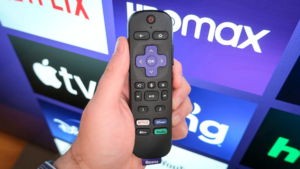


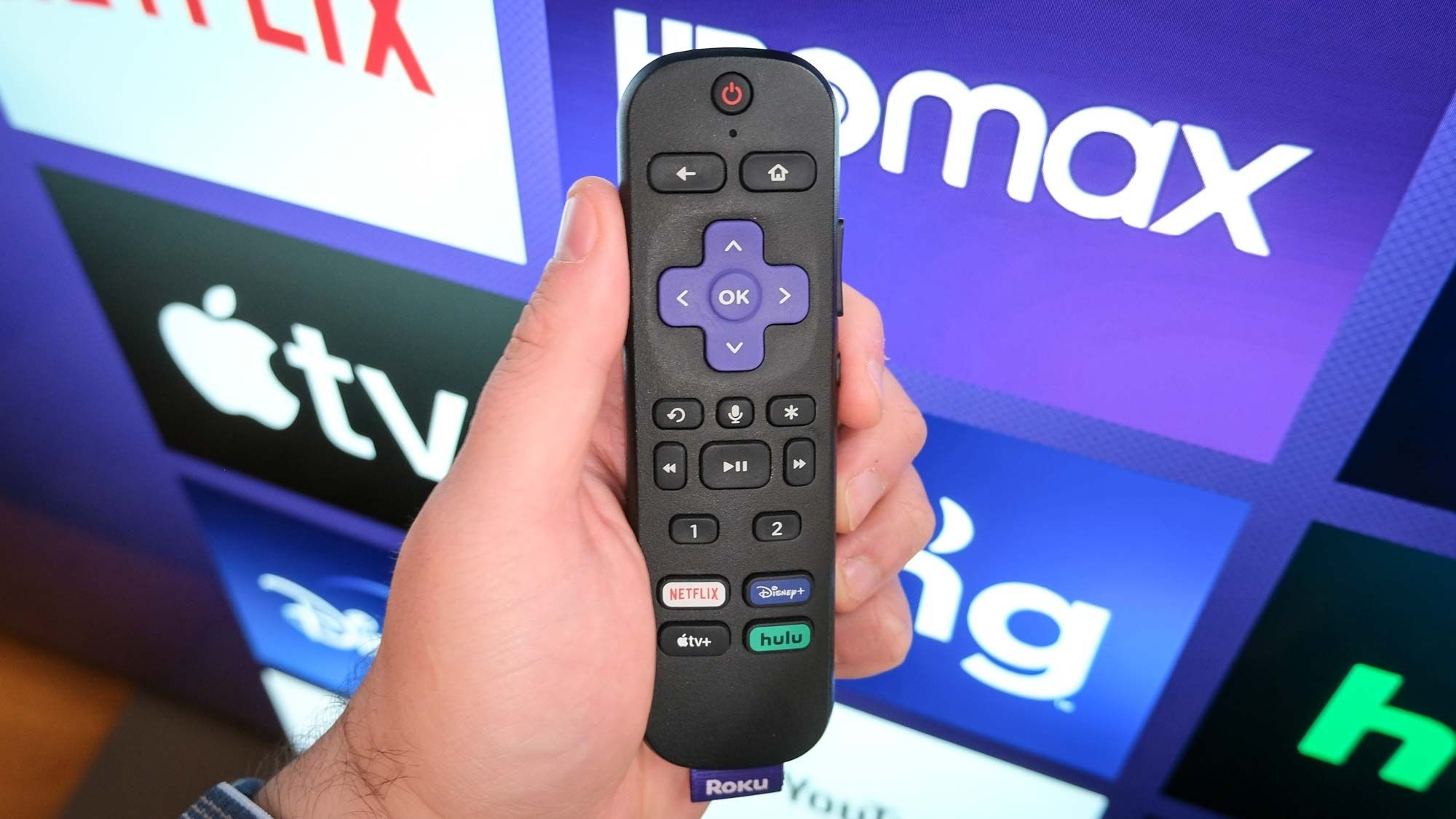
A Roku device makes streaming simple, but it can quickly become frustrating when the remote suddenly stops responding. Many users search for solutions when their roku remote not working issue prevents them from navigating menus, adjusting volume, or launching apps.
Fortunately, most remote problems can be fixed without replacing the device. In this guide, we’ll explore the most common reasons a Roku remote stops working and the steps you can take to get it functioning again.
Read about Vivo Browser Protect Web Page Security: What It Means and Why It Matters
Why Roku Remote Not Working
Several factors can cause a Roku remote to malfunction. Sometimes the issue is as simple as drained batteries, while other cases involve pairing problems or software glitches.
Common causes include:
- Dead or weak batteries
- Pairing issues
- Signal interference
- Software bugs
- Physical damage
- Network connectivity problems
Identifying the root cause is the first step toward fixing the problem.
Check the Batteries First
It may sound obvious, but batteries are often the reason a remote suddenly stops working.
If you’re wondering, why is my roku remote not working, start by:
- Removing the batteries
- Checking for corrosion
- Installing a fresh set of batteries
- Ensuring they are inserted correctly
Many users report that a roku remote not working with new batteries was actually caused by incorrectly positioned batteries or poor battery contact.
Restart Your Roku Device
Like many electronic devices, Roku products occasionally experience temporary software glitches.
To restart:
- Unplug the Roku device from power.
- Wait about 30 seconds.
- Plug it back in.
- Allow the device to fully reboot.
A simple restart often resolves communication problems between the remote and the streaming device.
Re-Pair the Remote
Some Roku remotes use wireless pairing instead of infrared signals. If the connection becomes interrupted, the remote may stop responding.
To re-pair:
- Remove the batteries
- Unplug the Roku device
- Wait 30 seconds
- Reconnect power
- Reinsert batteries
- Press and hold the pairing button inside the battery compartment
After a few moments, the remote should reconnect automatically.
This step often solves situations where my roku remote is not working despite having fresh batteries.
Check for Obstructions
Infrared Roku remotes require a clear line of sight between the remote and the Roku device.
Potential obstructions include:
- Decorative objects
- TV stands
- Soundbars
- Other electronics
Removing obstacles can immediately restore functionality.
If your roku tv remote not working problem occurs only from certain angles, signal blockage may be the cause.
Inspect the Battery Compartment
Over time, battery compartments can develop corrosion or dirt buildup.
Look for:
- White powder residue
- Rust-like deposits
- Bent battery contacts
If necessary:
- Remove batteries
- Clean contacts carefully with a dry cloth
- Reinstall fresh batteries
Even small amounts of corrosion can interrupt power flow and prevent the remote from working properly.
Eliminate Wireless Interference
Wireless Roku remotes communicate using Wi-Fi technology. Nearby devices can sometimes interfere with the signal.
Possible sources of interference include:
- Wireless routers
- Bluetooth devices
- Smart home equipment
- Wireless speakers
Moving these devices away from the Roku setup may improve performance.
Update Roku Software
Outdated software can occasionally create remote compatibility issues.
To update:
- Open Roku Settings.
- Select System.
- Choose System Update.
- Check for updates.
Keeping software current helps prevent bugs and improves overall device stability.
If you can’t use the remote, the Roku mobile app may allow you to access settings and perform updates.
Use the Roku Mobile App
The official Roku mobile application can function as a temporary remote control.
Benefits include:
- Full navigation controls
- Voice search features
- Keyboard input
- Private listening options
The app is especially useful when dealing with a roku remote not working issue while troubleshooting the physical remote.
Check for Physical Damage
Drops, spills, and everyday wear can damage internal components.
Signs of damage include:
- Loose buttons
- Cracked casing
- Water exposure
- Buttons stuck in place
If physical damage is present, repairing the remote may not be practical, and replacement could be the best solution.
When to Replace the Remote- Roku Remote Not Working
If none of the troubleshooting steps work, the remote itself may have failed.
Consider replacement if:
- Pairing repeatedly fails
- Buttons no longer respond
- Battery drain occurs unusually fast
- Physical damage is visible
Fortunately, replacement Roku remotes are widely available and relatively affordable.
Tips to Prevent Future Problems-Roku Remote Not Working
A few simple habits can help extend remote lifespan.
Store It Safely
Avoid placing heavy objects on the remote.
Replace Batteries Promptly
Weak batteries can sometimes cause pairing issues.
Keep It Clean
Regular cleaning prevents dirt buildup around buttons.
Protect Against Drops
Using a protective remote cover can reduce accidental damage.
These small precautions can help avoid future cases of roku remote not working unexpectedly.
Final Thoughts
Experiencing a roku remote not working problem can be frustrating, but most issues are easy to fix. Whether the cause is weak batteries, pairing errors, signal interference, or software glitches, a systematic troubleshooting approach usually restores normal operation.
Before purchasing a replacement, try checking batteries, restarting the device, re-pairing the remote, and updating software. In many cases, these simple solutions can save both time and money while getting your Roku back to working properly.
About The Author